The Complete Air Wisper Guide
Everything you can do with your voice. From basic dictation to advanced Mac control, text transforms, and multi-step workflows.
Basics
Getting Started
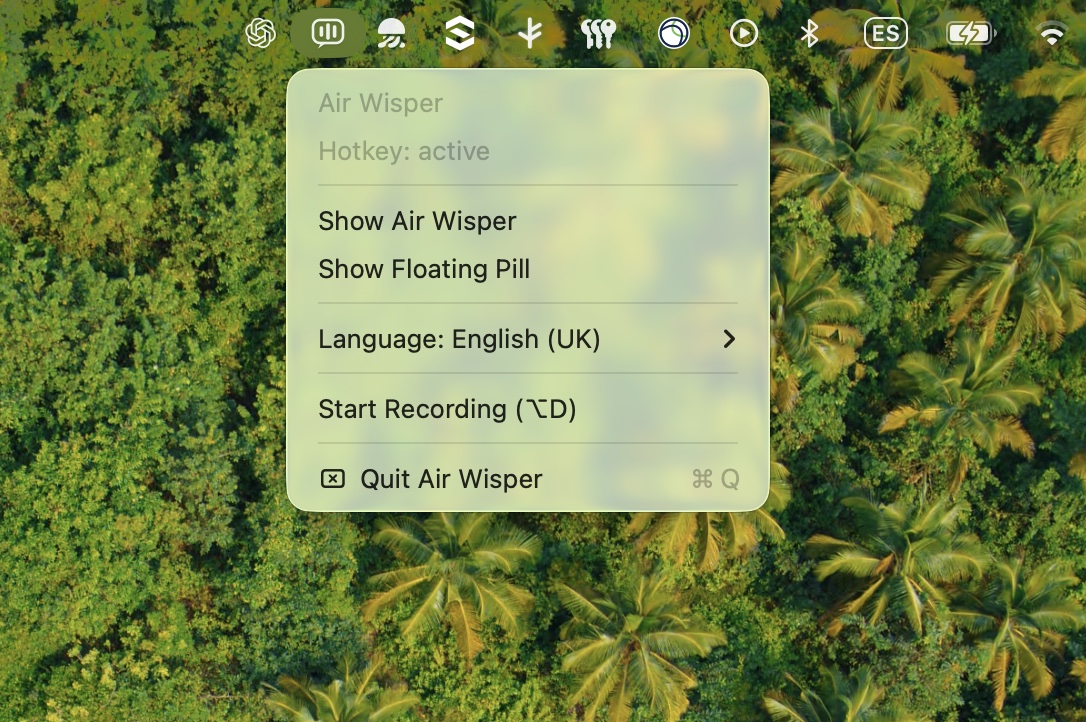
Air Wisper lives in your menu bar. It has two modes: Dictation for voice-to-text, and Mac Control for commanding your Mac. Each has its own hotkey.
Two Shortcuts, Two Powers
⌥D
Dictation — speak, get polished text typed into any app
⌥C
Mac Control — command your Mac, transform text, run workflows
Hold the shortcut, speak, release. That's it. Both shortcuts are configurable in Settings.
First time? Open Air Wisper from the menu bar, go to Settings, and make sure Microphone, Accessibility, and Speech Recognition permissions are all granted (green checkmarks).
Voice to Text
Dictation
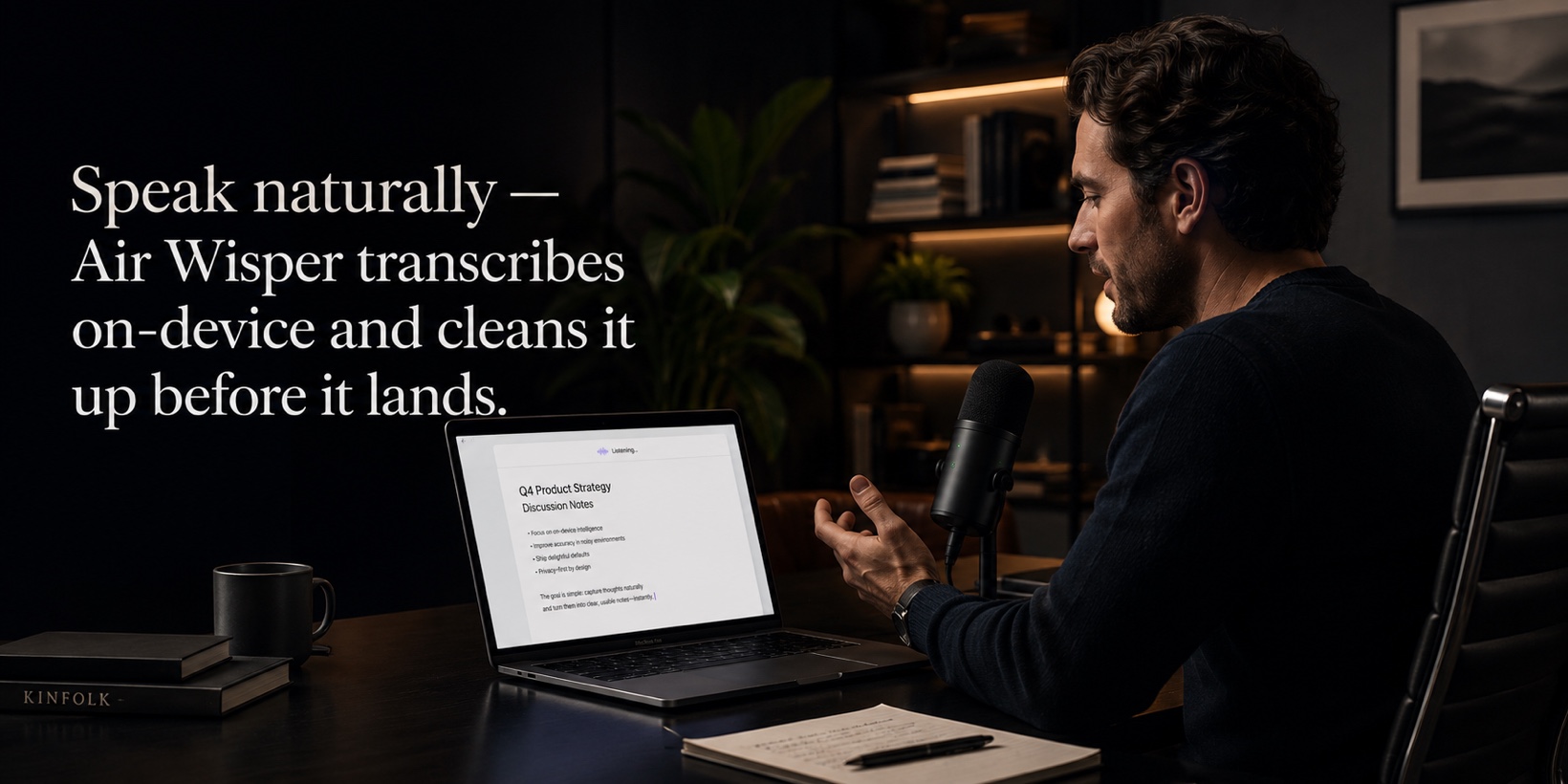
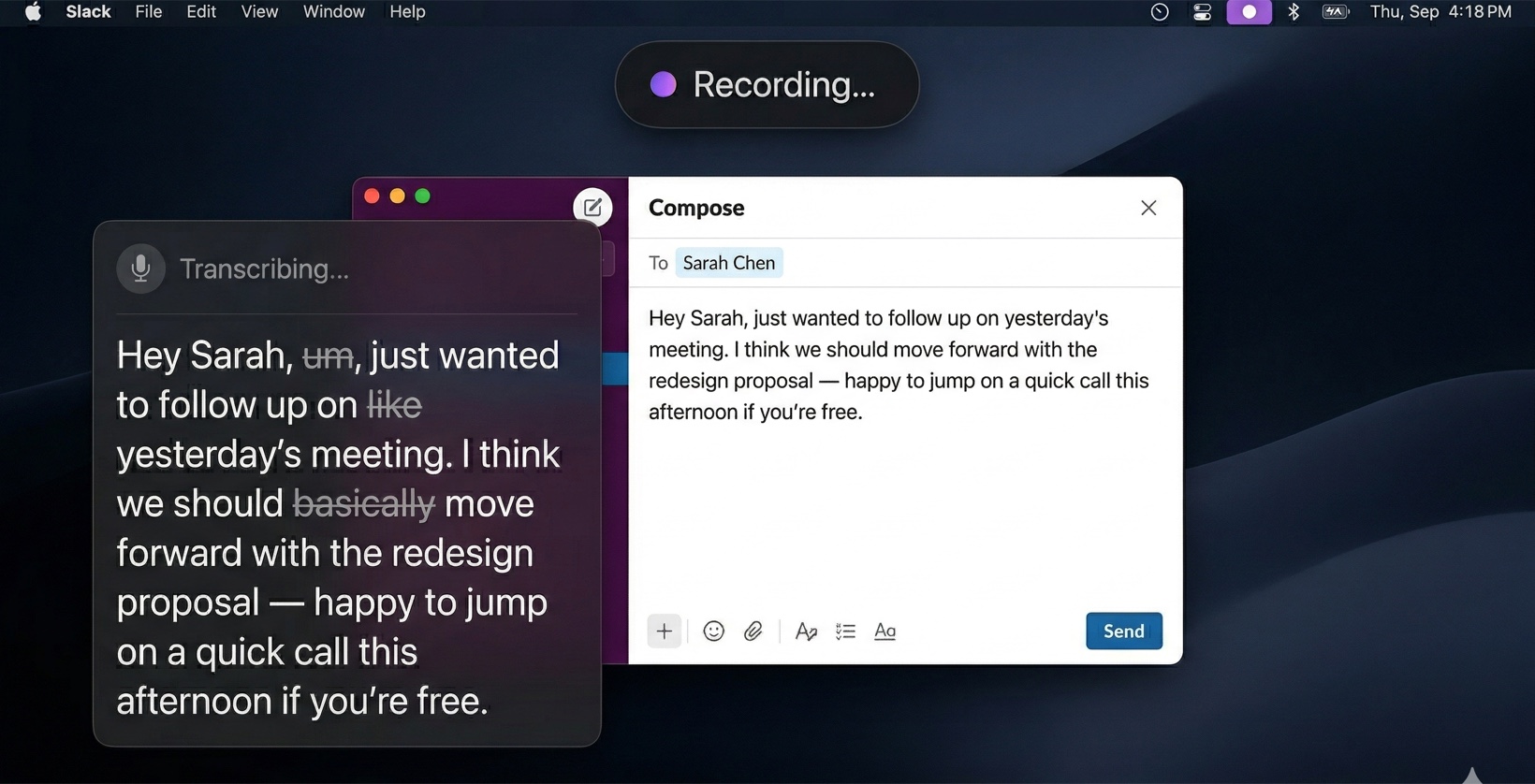
Hold ⌥D, speak naturally, release. Your speech is transcribed on-device, polished by AI (fixing grammar, punctuation, and filler words), and typed into the active app.
1
Apple Speech transcribes on-device (free, private)
2
AI cleans up grammar, punctuation, and filler words
3
Polished text is typed into the active app
Works everywhere. Slack, Mail, Notion, VS Code, your browser, any text field. No copy-paste needed — text appears right where your cursor is.
Voice Commands
Mac Control
Hold ⌥C, say what you want your Mac to do, release. The AI understands natural language and executes the right action.
Mac Control knows what app you're in, what window is focused, what text is selected, and what URL you're viewing. You don't need to explain — just say what you want.
It also remembers your last few commands, so you can say things like "actually, make it a third" or "and put Slack next to it."
AI Text Transform
Transform Selected Text
Select text in any app, hold ⌥C, say what to do with it. The selected text is replaced with the transformed version, in-place.
- "Make this more formal" Rewrites in a professional tone
- "Translate to Spanish" Translates the selected text
- "Shorten this" Condenses while keeping meaning
- "Fix the grammar" Corrects errors in-place
- "Turn this into bullet points" Reformats as a list
- "Make it friendlier" Adjusts tone
- "Summarize this" Creates a brief summary
- "Explain this simply" Rewrites for clarity
Works in Electron apps too. Notion, Slack, Chrome, VS Code — text transform works everywhere you can select text, even in apps that don't support the Accessibility API natively.
Commands
Apps & Windows
💻
Launch, Close & Arrange
- "Open Safari" Launch or switch to any app
- "Close Slack" Quit an application
- "Force quit Xcode" Kill a frozen app
- "Quit everything" Close all running apps
- "Move Chrome to the left half" Snap window to position
- "Maximize Finder" Fill the screen
- "Minimize Mail" Send to dock
- "Restore Mail" Bring back from dock
Window positions: left half, right half, top half, bottom half, center, maximize, left third, center third, right third
Finder & Files
- "Open Downloads" Open folder in Finder
- "Open Desktop" Navigate to Desktop
- "Open Documents" Navigate to Documents
- "Take a screenshot" Capture full screen
- "Screenshot selection" Capture a selected area
- "Screenshot window" Capture the active window
- "Empty the trash" Empty Finder trash
Folders: desktop, downloads, documents, applications, pictures, music, movies, home, screenshots
System
- "Toggle dark mode" Switch light / dark appearance
- "Do not disturb" Toggle Focus / DND mode
- "Lock the screen" Lock your Mac instantly
- "Brightness up" Increase display brightness
- "Brightness down" Decrease display brightness
- "Switch to the left space" Move to another desktop
- "Open google.com" Open a URL in your browser
- "Set a timer for 25 minutes" Countdown with notification
- "Pomodoro" 25-minute focus timer
- "Copy" / "Paste" / "Undo" Common shortcuts by name
- "Save" / "Select all" Quick actions
- "New tab" / "Close tab" Browser shortcuts
- "Press Command Shift 4" Any keyboard combo
Apple Shortcuts
Run any Shortcut from the macOS Shortcuts app by voice. Air Wisper sends your installed shortcut names to the AI, so it fuzzy-matches even if you don't say the exact name.
- "Run my morning routine" Runs the Shortcut by name
- "Run the focus mode shortcut" Fuzzy name matching
- "Run Make GIF" Any installed Shortcut works
Infinite extensibility. Anything you can build in Apple Shortcuts — HomeKit automations, sending messages, toggling system settings, running scripts — becomes voice-controllable without Air Wisper having to support it natively.
Multi-Step Commands
Chain multiple actions in a single voice command. The AI breaks them down into steps and executes each one in order.
-
"Open Safari and move it to the left half, then open Slack and move it to the right half"
4 steps: open Safari, snap left, open Slack, snap right
-
"Mute the volume and toggle dark mode"
2 steps executed in sequence
-
"Open Downloads and take a screenshot"
Opens folder, then captures screen
-
"Quit everything and lock the screen"
End-of-day cleanup in one sentence
Inspiration
Real-World Use Cases
Voice commands shine when your hands are busy, when the action is multi-step, or when the alternative is digging through menus.
☕ Hands on Coffee
Morning routine while your hands are wrapped around a mug. Set up your workspace without touching the keyboard.
"Open Chrome on the left, Slack on the right, and play some music"
💻 Coding Flow
Stay in your editor. Control everything else by voice — switch apps, look up docs, manage windows.
"Move VS Code to the left two thirds and Terminal to the right third"
🎤 Meeting Mode
Prep for a call instantly. Mute notifications, open your meeting notes, and arrange your screen.
"Do not disturb, open Zoom, and mute the volume"
✏️ Writing & Editing
Select a paragraph and transform it with your voice. Fix grammar, change tone, translate, or summarize.
Select text → "Make this more concise and professional"
🏃 End of Day
One command to clean up: close everything, empty trash, lock your Mac. Done in 3 seconds.
"Quit everything, empty the trash, and lock the screen"
🚀 Quick Actions
The things that are faster to say than to click. Mute during a call, toggle dark mode at night, set a focus timer.
"Pomodoro" / "Mute" / "Dark mode"
Pro Tips
Tips & Tricks
Speak naturally. You don't need robotic phrasing. "Can you open Safari for me?" works just as well as "Open Safari."
Conversational follow-ups. After a command, you have about 90 seconds to say follow-ups like "actually, make it bigger" or "and put Slack next to it" without repeating context.
App name shortcuts. Say "Chrome" instead of "Google Chrome", "VS Code" instead of "Visual Studio Code", "Code" for VS Code. The AI knows common aliases.
Text transform works everywhere. Select text in any app (even Electron apps like Notion and Slack), hold ⌥C, describe what to do, release. The text is replaced in-place.
Apple Shortcuts = superpowers. Create Shortcuts in the Shortcuts app for anything Air Wisper doesn't support natively (HomeKit, sending messages, custom scripts), then trigger them by voice.
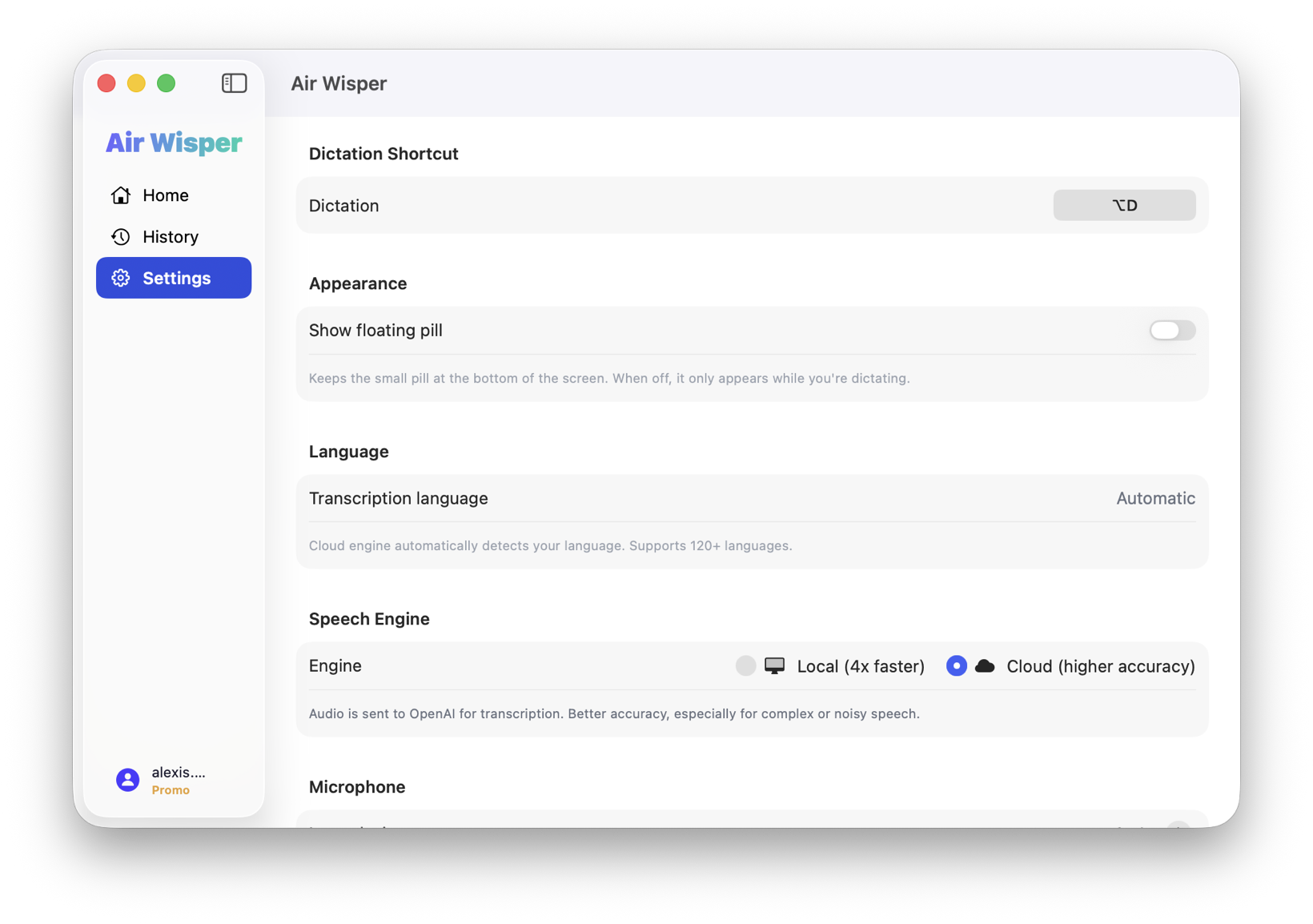
Cloud vs Local engine. Local (default) is 4x faster and fully private. Cloud is more accurate for complex speech. Switch in Settings based on your needs.
Customize your shortcuts. Don't like ⌥D and ⌥C? Change them in Settings > Shortcuts to any key combination that works for you.